Ever found yourself in a game of phone tag where your iPhone’s the elusive champion? Picture this: your phone’s ringing, but you’re blissfully unaware, lost in your own world. Frustrating, right? Whether it’s a friend trying to reach you or a long-awaited call from your boss, missing calls can feel like a comedy of errors.
Common Reasons For Call Quietness
Several factors contribute to the difficulty in hearing incoming calls on an iPhone. Understanding these common reasons can help identify the issue.
Volume Settings Issues
Incorrect volume settings often lead to missed calls. Users might find their ringer volume set too low. Adjusting the ringer volume can provide a significant improvement. Access settings by going to Sounds & Haptics, then increase the Ringer and Alerts slider. It’s essential to ensure that volume is sufficient, especially in loud environments. Regularly checking volume settings before important calls can prevent future disruptions.
Do Not Disturb Mode
Do Not Disturb mode silences all calls when activated. This feature can easily be turned on accidentally. To verify if it’s enabled, swipe down from the top right corner and look for the crescent moon icon. If this mode is on, calls don’t come through, leading to missed notifications. Turning off Do Not Disturb allows calls to ring normally. Users can also customize settings to allow calls from favorites while retaining silence for others.
Silent Mode Activation
Silent mode on an iPhone can also cause call quietness. Users often forget that the silent switch is engaged. A quick check of the switch on the side of the device can resolve this issue. If it’s showing orange, the phone is in silent mode, muted for all calls and alerts. Turning off silent mode restores sound for incoming calls. Users benefit from periodically checking their device to ensure proper audio settings.
Hardware Problems
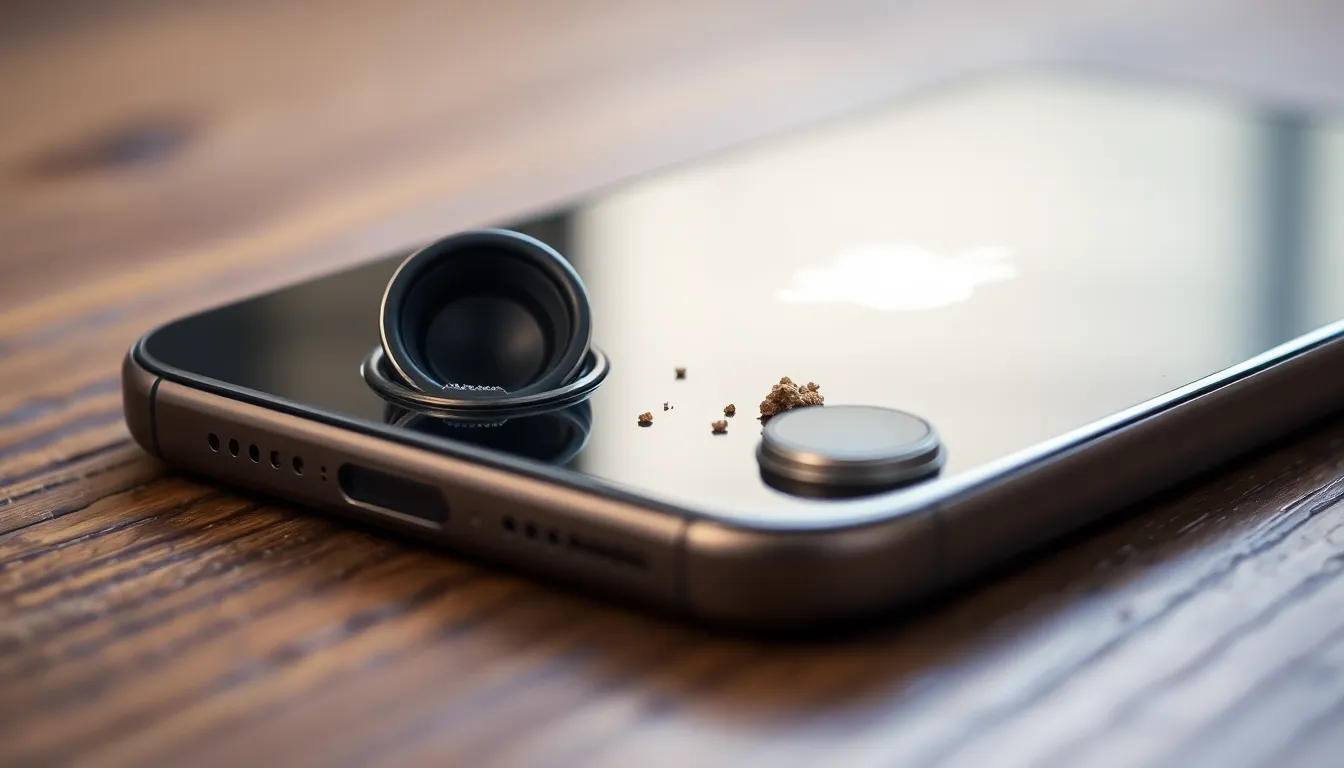
Missing calls due to hardware issues presents a significant concern for iPhone users. Various components may contribute to sound problems, especially during incoming calls.
Speaker Malfunction
Speaker malfunctions can impede call sounds. Damage to the speaker may result from exposure to water or physical impact. Affected users might notice muffled sound or complete silence during calls. Testing the speaker with music or a video helps identify if it’s functional. Non-responsive speakers often require repair or replacement to restore proper functionality.
Ear Speaker Issues
Ear Speaker issues may also lead to missed calls. Accumulated debris or damage can affect sound quality. Users often notice choppy or distorted audio during calls. Checking for obstructions, such as dust or lint, in the ear speaker can reveal simple fixes. In some cases, professional cleaning becomes necessary to ensure optimal performance. Replacing a faulty ear speaker requires technical expertise, ensuring the problem gets addressed effectively.
Software Glitches
Software glitches often contribute to issues with hearing incoming calls on an iPhone. Troubleshooting these problems can improve call notifications significantly.
Outdated iOS Version
An outdated iOS version frequently causes call-related glitches. Users encounter missing call sounds if their device hasn’t been updated in a while. Apple regularly releases updates, addressing bugs and improving overall performance. Checking for the latest software version ensures access to essential features and fixes. To update, users can navigate to Settings, select General, then Software Update. Installing available updates enhances device functionality and may resolve sound issues.
App Conflicts
Conflicts with certain apps can also lead to silent call notifications. Some apps may unintentionally take control of audio settings, muting incoming calls. Checking recently downloaded or updated apps often reveals potential culprits. Users can test this by closing apps one by one or uninstalling them to see if notifications return. Resetting app preferences may also help. Regularly reviewing permissions and app settings aids in maintaining proper device performance.
Troubleshooting Steps
Addressing audio issues on an iPhone can enhance call notification experiences significantly. Users can follow these steps to resolve problems effectively.
Adjusting Volume
Begin by checking the ringer volume. Navigate to Settings, then Sounds & Haptics. Users can slide the Ringer And Alerts volume up, ensuring it’s set at an audible level. A simple press of the volume buttons on the side may also assist in making adjustments. Consider testing the ringer with various tones to confirm that the sound is functioning properly. Sometimes, switching the silent switch back and forth also helps reset any volume issues that might persist.
Restarting Your iPhone
Restarting the iPhone often resolves many software-related glitches. Hold down the power button until the “slide to power off” option appears. After sliding to power off, wait around 30 seconds before turning the device back on. This brief pause allows the system to refresh. Once rebooted, users can check if the volume issues have been resolved effectively. Restarting devices works for most glitches by clearing temporary files that may conflict with notifications.
Resetting Settings
Resetting all settings may restore audio functionality without deleting personal data. Access Settings, then General, followed by Reset. Select Reset All Settings and confirm the action. Users should remember that this step will revert system preferences like Wi-Fi passwords and wallpapers. After completing this process, it can help rectify sound and notification issues across the device. Users can expect enhancements in call sound after resetting settings, restoring functionality.
Missing calls on an iPhone can be frustrating but understanding the potential causes can lead to effective solutions. By checking volume settings and ensuring Do Not Disturb mode isn’t activated, users can avoid silent calls. Addressing hardware issues like speaker malfunctions or ear speaker blockages is crucial for optimal sound quality.
Software updates and app settings also play a significant role in call notifications. Regular maintenance and troubleshooting can enhance the overall call experience. With these tips in mind, users can ensure they never miss an important call again.