Ever found yourself in the middle of a crucial conversation only to realize your iPhone’s been on mute? It’s like trying to shout into a pillow—frustrating and utterly pointless. Whether it’s during a conference call or when you’re trying to catch up on your favorite podcast, silence can feel like a betrayal when you need to hear something important.
But don’t worry! Removing the mute on an iPhone is easier than finding that missing sock in the laundry. With just a few simple steps, you’ll be back to enjoying all the sounds your device has to offer. Say goodbye to awkward moments and hello to clear conversations! Let’s dive into how to unmute your iPhone and reclaim your auditory experience.
Understanding Mute Functionality on iPhone
Mute functionality on an iPhone serves to silence incoming alerts and audio playback. This feature provides users with control over their sound environment, ensuring privacy and focus during important moments.
What Does Mute Do?
Mute silences all notifications, calls, and alerts. When activated, users won’t hear ringtones or message tones. Users can browse apps, play games, or watch videos without sound interruptions. The feature provides convenience when in meetings or social settings, allowing for discretion.
Common Reasons for Mute Activation
Many users activate mute accidentally. Moving the silent switch on the side of the iPhone can easily happen during handling. Sometimes, iPhone settings change automatic sound preferences, resulting in unintentional mute activation. Notifications during important meetings or while watching media can lead users to turn on mute for peace.
Methods to Remove Mute on iPhone
Unmuting an iPhone can be done through several straightforward methods. Users can follow simple steps to ensure audio settings function as intended.
Using the Ring/Silent Switch
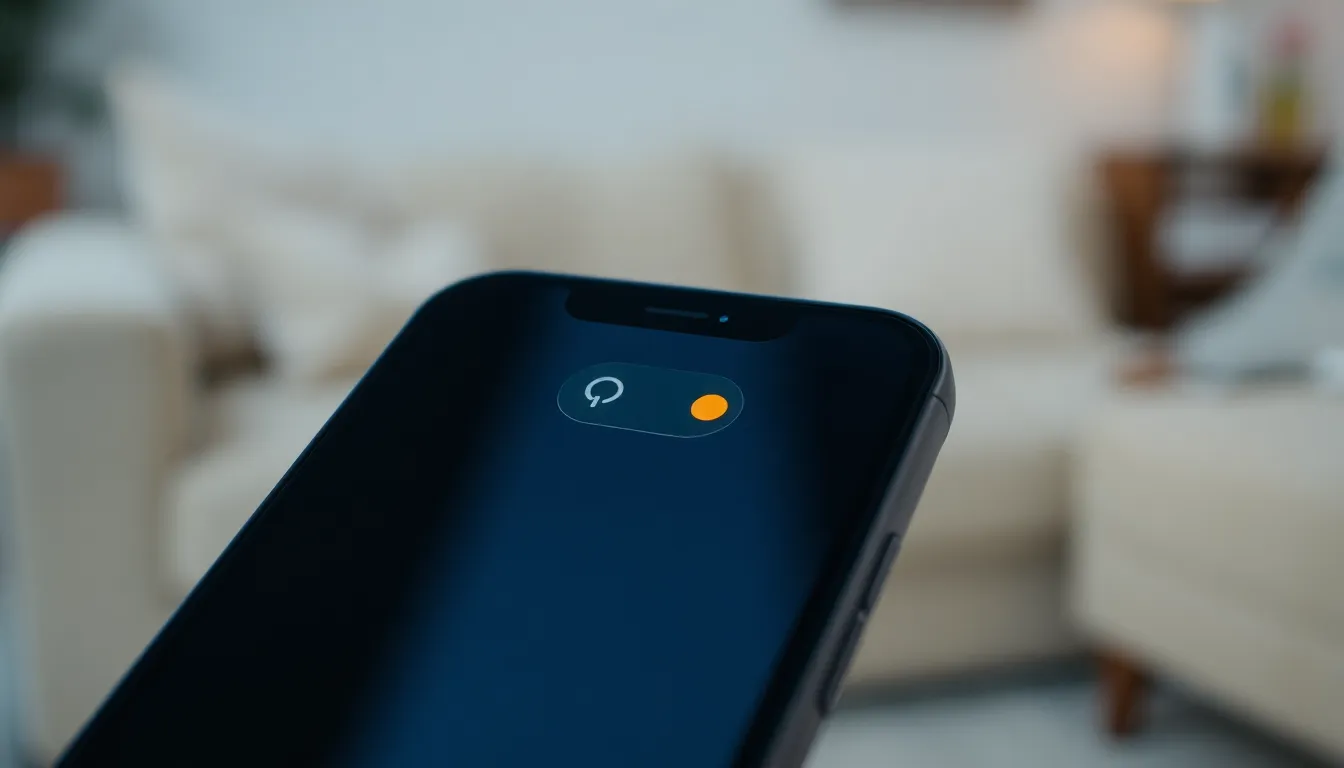
Accessing the Ring/Silent switch on the side of the device provides a quick solution. Users can find this switch near the volume buttons. Flipping the switch towards the screen activates sound, while switching it away mutes notifications and calls. Checking for any visible orange indicator denotes the device is muted. Inspecting this before important calls ensures a seamless audio experience.
Adjusting Volume Settings
Altering volume settings can restore sound easily. Direct users to press the volume up button on the left side of the iPhone. Increasing volume by holding the button can make a significant difference. Alternatively, accessing the Control Center enables users to adjust volume via the slider. Users can swipe down from the top-right corner (or up from the bottom on older models) to adjust their sound levels directly.
Checking Do Not Disturb Mode
Muting can also occur due to Do Not Disturb mode being enabled. Users should check this feature by opening the Settings app. Navigating to “Focus” allows users to view if Do Not Disturb is activated. Disabling this option allows notifications and calls to come through. Checking the moon icon in the Control Center also provides a quick reference for this setting.
Troubleshooting Mute Issues
Mute problems can interrupt conversations or enjoyment of media. Users can apply several troubleshooting methods to resolve these issues effectively.
Restarting Your iPhone
Restarting the device can often resolve sound issues. To do this, hold the Side button and either Volume button until the slider appears. Drag the slider to turn off the iPhone. After the device is off, wait at least 30 seconds before pressing the Side button again to turn it back on. This simple step can refresh the device’s system and restore sound settings.
Updating iOS
Keeping the iOS version current ensures optimal performance. Frequent updates include bug fixes that can affect sound functionality. To check for updates, open the Settings app, tap General, and select Software Update. If an update is available, tap Download and Install. Allow the device to update, which can resolve mute-related issues effectively. Regularly updating maintains device performance and reliability.
Additional Tips for Managing iPhone Sound
Managing sound settings on an iPhone enhances usability. Consider various methods to ensure the device functions as desired.
Using Accessibility Options
Utilizing accessibility options can simplify sound management. Navigate to Settings and select Accessibility. After that, tap on Audio/Visual to find features like Mono Audio, which unifies sound between left and right channels. Adjusting the Hearing Devices option can also improve connectivity with assistive devices. Enabling the Sound Recognition feature alerts users to specific sounds, ensuring they stay aware of important notifications. These tools enhance control over the iPhone’s audio settings.
Utilizing Control Center
The Control Center offers quick access to sound settings. Swipe down from the top-right corner on newer models or swipe up from the bottom on older models. Tap the volume slider for immediate adjustments to sound levels. Users can easily disable or enable Silent Mode from the Control Center by checking the ring icon. AirPlay options are also available for streaming sound to other devices. Such features streamline managing audio preferences on the iPhone.
Removing mute on an iPhone is a quick and simple process that can significantly enhance the user’s experience. By utilizing the Ring/Silent switch or adjusting volume settings, anyone can easily regain sound for calls and notifications. Checking for Do Not Disturb mode and ensuring the device’s software is up to date are crucial steps for maintaining optimal sound functionality.
With these straightforward methods and tips, users can enjoy their iPhones without the frustration of unexpected silence. Mastering these settings empowers users to take control of their audio environment, ensuring they never miss important moments or messages again.