In a world where apps reign supreme, widgets are the unsung heroes of the iPhone experience. Imagine having your favorite information at a glance, all while keeping your home screen looking sharp and organized. Adding new widgets isn’t just a techy task; it’s a chance to personalize your device and make it truly yours.
Understanding Widgets on iPhone
Widgets serve as powerful tools that personalize the iPhone experience. These dynamic elements provide users with quick access to information right from the home screen.
What Are Widgets?
Widgets are small app extensions displaying information at a glance. They function independently on the home screen, offering real-time updates. Users can add various types, such as weather, calendar, or news. Each widget can show different data without needing to open the full app. Customizing them allows for enhanced functionality tailored to individual preferences.
Benefits of Using Widgets
Using widgets streamlines access to essential information. They save time by delivering updates without app navigation. Enhanced organization occurs with widgets because categories group information visually. Users experience improved customization through size and layout choices. Widgets also allow users to prioritize important tasks and notifications effectively. Integrating them into the home screen enhances productivity and personal flair.
How to Add New Widgets on iPhone
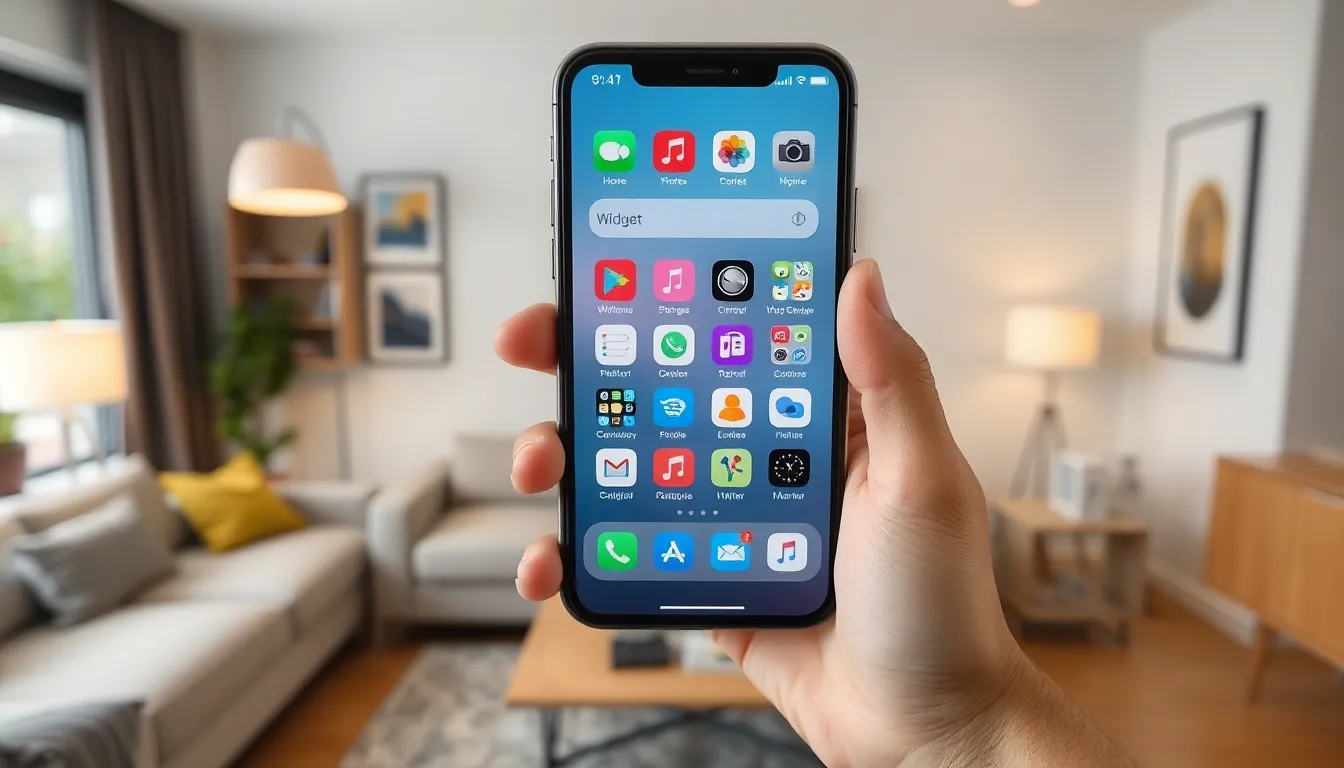
Adding new widgets enhances the iPhone experience by providing quick access to vital information while allowing for personalization. Users can streamline their home screens, making them more functional and visually appealing.
Accessing the Widget Gallery
To access the Widget Gallery, swipe right from the home screen or lock screen. This gesture opens the Today View, showcasing various widgets. Users can scroll to the bottom and tap the “Edit” button for additional options. Tapping the “+” icon opens the Widget Gallery, where available widgets appear. This gallery includes options from both pre-installed apps and third-party applications. Navigating through the list offers a glimpse of what functionality each widget brings.
Selecting and Customizing Widgets
Selecting a widget starts with tapping one from the gallery. After confirming the choice, users can choose the widget size from small, medium, or large options. Customization features allow adjustments to the information displayed. For example, weather widgets can show the current temperature or forecast. After configuration, dragging the widget onto the home screen makes it accessible. Arranging widgets based on personal preference enhances organization and functionality. Finally, tapping “Done” saves the new layout, providing a personalized home screen experience.
Types of Widgets Available
Various widgets enhance the iPhone experience by providing quick access to essential information. Each widget type offers unique functionalities tailored to user needs.
Weather Widgets
Weather widgets display real-time weather data, giving users immediate access to current conditions, forecasts, and alerts. Users can track temperature, precipitation, and wind speed at a glance. Among popular options, users find widgets from Apple Weather or third-party apps like The Weather Channel. Customization allows users to choose size and data type, ensuring they see the most relevant information. By integrating weather widgets on the home screen, individuals can plan their day efficiently.
Calendar Widgets
Calendar widgets help users manage schedules by providing a snapshot of upcoming events and reminders. Users can choose from various styles, offering daily, weekly, or monthly views. Linking directly to the device’s calendar app, these widgets show details without accessing the app. Choices include Apple’s Calendar widget, Google Calendar, or specialized productivity apps. The convenience of calendar widgets supports better time management and prioritizes tasks effectively.
News and Social Media Widgets
News and social media widgets keep users connected to the latest updates from their favorite sources. With options to follow headlines, social feeds, or personalized news categories, users can stay informed seamlessly. Various applications, such as Apple News or Twitter, offer customizable layouts that fit user preferences. Select the most relevant news topics or social updates for quick insights. Utilizing these widgets can enhance engagement with trending topics and streamline social interactions.
Troubleshooting Common Widget Issues
Widgets enhance the iPhone experience, but issues can occur. Understanding common problems helps users maintain functionality.
Widgets Not Responding
Widgets might freeze or become unresponsive for various reasons. Restarting the iPhone often resolves minor glitches. If that doesn’t help, remove the widget from the home screen by long-pressing it, then select “Remove Widget.” After clearing it, users can re-add the widget from the Widget Gallery. Ensuring that the associated app is up to date can also fix issues. Users should check the App Store for updates regularly. Also, if the widget is still unresponsive, checking network settings is important, as some widgets require internet connectivity for proper functioning.
Missing Widgets
Sometimes, widgets may go missing after an update or changes to the home screen layout. Users should try swiping right on the home screen to access the Widget Gallery, confirming that the desired widgets haven’t been removed. Restarting the device can help restore missing components. If widgets are still absent, users can navigate to the App Store to check for any updates on specific apps linked to those widgets. In addition, restoring the widgets through the “Edit” option in the Widget Gallery may solve the issue. If missing widgets persist, resetting home screen layout settings could bring them back into view.
Adding widgets to an iPhone not only enhances functionality but also allows for a personalized touch. With a variety of options available users can tailor their home screens to reflect their preferences and priorities. The process is straightforward and encourages creativity in organizing essential information.
By integrating widgets users streamline access to updates and notifications while maintaining an organized layout. Troubleshooting common issues ensures a smooth experience and keeps the home screen looking its best. Embracing widgets can significantly improve productivity and make the iPhone experience more enjoyable.